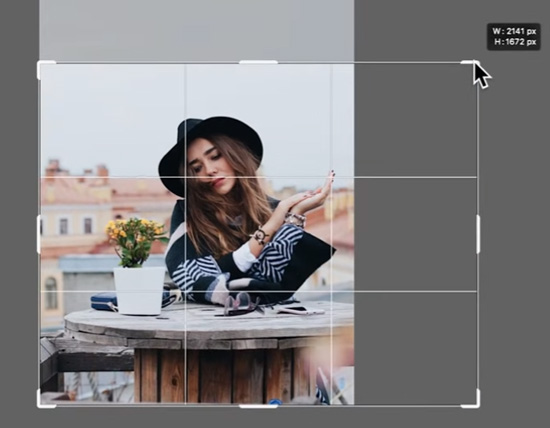
If you’re new to print design, “bleed” can feel confusing—or worse, like something you only remember when the printer rejects your file. The good news? Modern design tools now make adding bleed much easier, thanks to a feature called Generative Expand.
This guide walks you through how beginners can safely use Generative Expand to add bleed to artwork without having to redesign everything from scratch.
What Is Bleed (and Why It Matters)?
Bleed is the extra image area that extends beyond the final trimmed size of a printed piece. When paper is cut, tiny shifts can happen. Bleed ensures your background extends to the edge, eliminating thin white lines.
Most printers require: 3 mm (0.125 in) bleed on all sides (a total of .25-inches). If your artwork stops precisely at the edge, it’s not print-ready—even if it looks fine on screen.
What Is Generative Expand?
Generative Expand is an AI-powered feature that extends your artwork beyond its original size. Instead of stretching pixels, it creates new content that matches your existing background, colors, and textures.
For beginners, this means:
- No complex cloning
- No rebuilding backgrounds
- No starting over when the bleed is missing
Step-by-Step: Adding Bleed with Generative Expand
1. Open Your Artwork
Today, we have a file for the cover of a coloring book that has no bleed area. Let’s get started.
Open your file and make sure:
- Text and logos are not touching the edges
- Backgrounds reach close to the edge (this helps the AI)
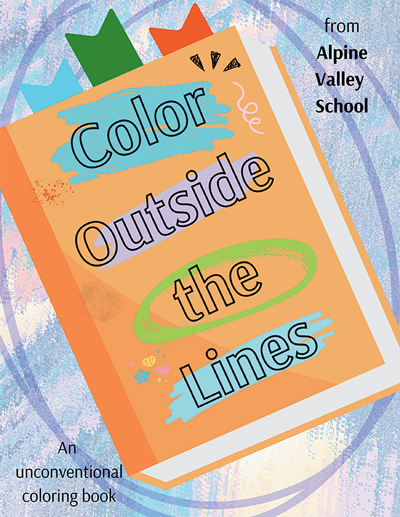
2. Expand the Canvas
- Select the crop tool
- Increase the canvas size by your bleed amount (for example, 3 mm on all sides). I just stretched the crop tool and edited the canvas size later.
- At the top, make sure “Delete Cropped Pixels” is checked.
- At the top, make sure “Generative Expand” is selected.
- Apply the crop (hit “enter”)
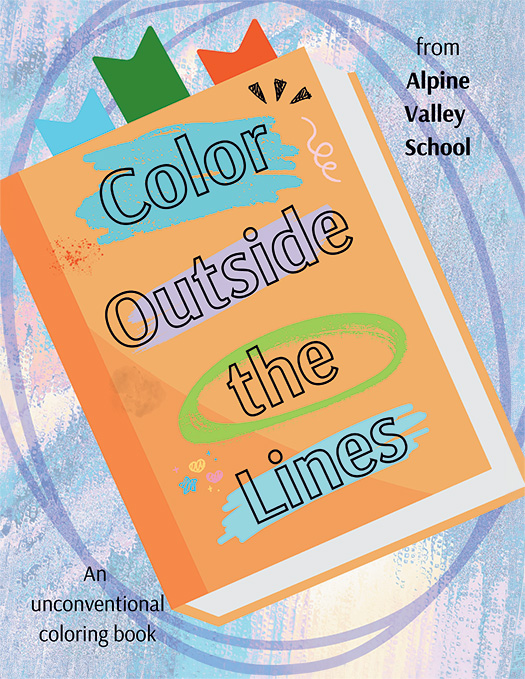
Now we have more space, or background area, between your essential art and the edges. Printers trim this extra space so they can provide edge-to-edge printing. That little bit of extra space is pivotal for commercial printers.
ALWAYS CHECK THE ART FOR WEIRDNESS. You may have to try a couple of times.
Final Tips for Beginners
- Never put important text in the bleed area
- Bleed is meant to be trimmed off
Generative Expand won’t replace good design habits—but it’s a huge help when you’re learning or fixing files under pressure.
Here is a wonderful tutorial for our visual learners.